How to Extract Text From an Image: 5 Free Ways
Retyping text from a screenshot or a photo is slow and error-prone. Optical character recognition (OCR) does it in seconds. Here are five free ways to copy text from any image, and how to get accurate results.
Quick answer
Drop the image into a free OCR tool, choose the document's language, and copy the recognized text. Built-in options also exist: Snipping Tool → Text actions on Windows 11, Live Text on Mac and iPhone, and Google Lens on Android.
What is OCR?
Optical character recognition (OCR) is technology that finds text in an image and converts it into real, editable characters. Modern OCR engines use neural networks to recognize whole lines of text, so they handle different fonts, sizes and layouts far better than older systems.
Method 1: Free online OCR (any device)
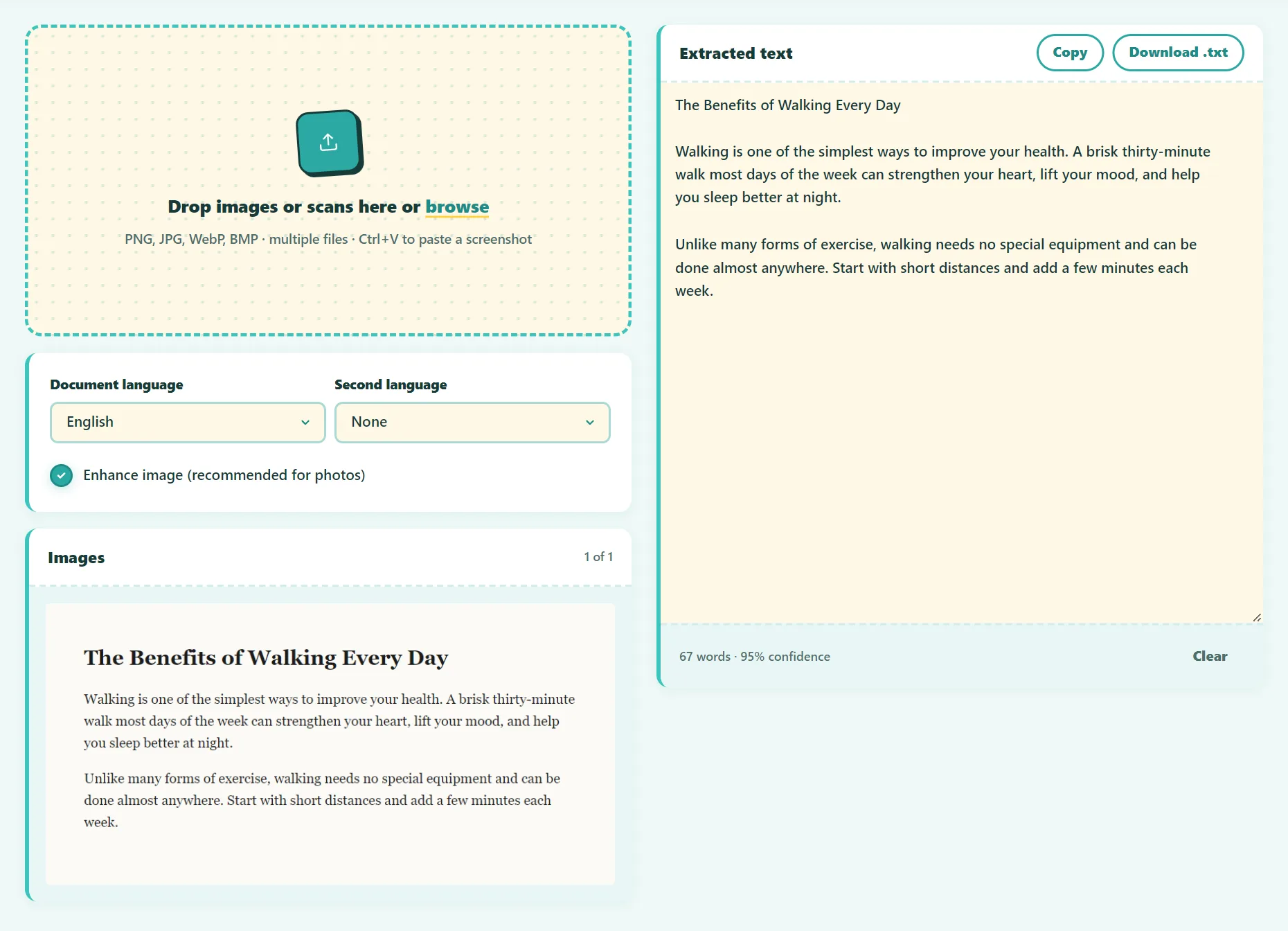
This works on any computer or phone and supports more than 30 languages, including documents that mix two languages:
- Open the free Image to Text tool.
- Drop one or more images, or paste a screenshot with Ctrl+V.
- Choose the document's language. Add a second one for bilingual documents.
- Turn on Enhance image for phone photos of documents.
- Correct anything that needs it, then copy the text or download it as a .txt file.
The OCR engine (Tesseract) runs in your browser, so your documents are never uploaded. That's important for IDs, contracts and medical letters.
Try it free: Image to Text (OCR)
Extract text from images and scans, then export it as a .txt file. Runs in your browser, no sign-up.
Method 2: Windows 11 (Snipping Tool)
- Press Win+Shift+S and capture the area with text.
- Open the capture in the Snipping Tool window.
- Click Text actions, then Copy all text, or select just part of it.
Microsoft's free PowerToys utility also includes a Text Extractor, opened with Win+Shift+T, that copies text from anywhere on your screen.
Method 3: Mac (Live Text)
On recent versions of macOS, you can select text directly in photos and screenshots. Open the image in Preview or Photos, hover over the text until the cursor changes, then drag to select it and press Cmd+C.
Method 4: iPhone and iPad (Live Text)
Open a photo, or point the Camera app at text. Tap the Live Text icon (a small box with lines) that appears in the corner, then touch and hold to select and copy.
Method 5: Android (Google Lens)
Open the photo in Google Photos and tap Lens, or open Lens from the Google app. Choose Text, select what you need, and tap Copy.
Which method is best?
| Method | Best for | Languages | Batch images |
|---|---|---|---|
| Online OCR tool | Multi-page scans, long documents, privacy | 30+, two at once | Yes |
| Windows Snipping Tool | Quick copies from the screen | Depends on Windows language packs | No |
| Mac / iPhone Live Text | Photos already on your device | Major languages | No |
| Google Lens | Signs, menus, labels on the go | Many | No |
How to get the most accurate results
- Choose the right language. OCR uses language-specific dictionaries. The wrong setting causes many errors, especially with accented letters.
- Shoot straight on. Hold the phone parallel to the page. Angled photos distort letters.
- Use even light. Shadows across the page are a common cause of missing words.
- Get close enough. Text should be at least 20 pixels tall in the image. Zoom in before taking a screenshot of small text.
- Flatten the page. Curved book pages bend the lines of text.
- Prefer originals. A screenshot of a digital document beats a photo of a printout.
- Proofread numbers. 0/O, 1/l and 5/S are the classic mix-ups.
How to extract text from a PDF
If the PDF was created digitally, try selecting the text directly first: it may already be real text. If it's a scanned PDF, the pages are images. Export or screenshot each page as an image, drop them all into the OCR tool, and they'll be processed in order.
What OCR struggles with
- Handwriting, especially cursive.
- Decorative fonts and text over busy backgrounds.
- Complex layouts: tables, multiple columns and forms may come out in an unexpected order.
- Low resolution or heavily compressed images.
Frequently asked questions
How accurate is free OCR?
For clear, printed text at a good resolution, accuracy is usually above 95%. Photos, handwriting and stylized fonts lower it.
Can OCR read handwriting?
Neat block letters sometimes work. Cursive handwriting is unreliable with general-purpose OCR engines.
Is it safe to scan personal documents online?
It depends on the service. Our Image to Text tool processes images in your browser and never uploads them.
Can I extract text from multiple images at once?
Yes. Drop several images and they're processed in order, so you get one continuous text.
The bottom line
For quick copies, use your device's built-in features. For long or multi-page documents, other languages or sensitive files, use a dedicated OCR tool. Either way, a sharp, straight, well-lit image is the secret to accurate results.
Found something out of date or unclear? Email contact@ultratoolsai.com and we'll fix it.