How to Remove the Background From an Image: 4 Free Methods
A clean cut-out used to take an hour of careful work in Photoshop. Today it takes a few seconds. Here's how to do it for free on any device, and how to get edges that actually look professional.
Quick answer
The fastest free way is an AI background remover: upload the photo, wait a few seconds, and download a transparent PNG. On an iPhone, touch and hold the subject in the Photos app and tap Copy or Share. On a Mac, right-click the image in Finder and choose Quick Actions → Remove Background. In Windows 11, open the image in Paint and click Remove background.
Whether you're selling on Etsy, building a slide deck or making a profile picture, removing the background is one of the most common photo edits there is. The good news is that you no longer need design skills for it. Modern AI models can tell a subject from its surroundings almost as well as a person can, including tricky areas like hair and fur.
Below are four free methods, when to use each one, and the small details that separate an amateur cut-out from a professional one.
Method 1: Use a free AI background remover (any device)
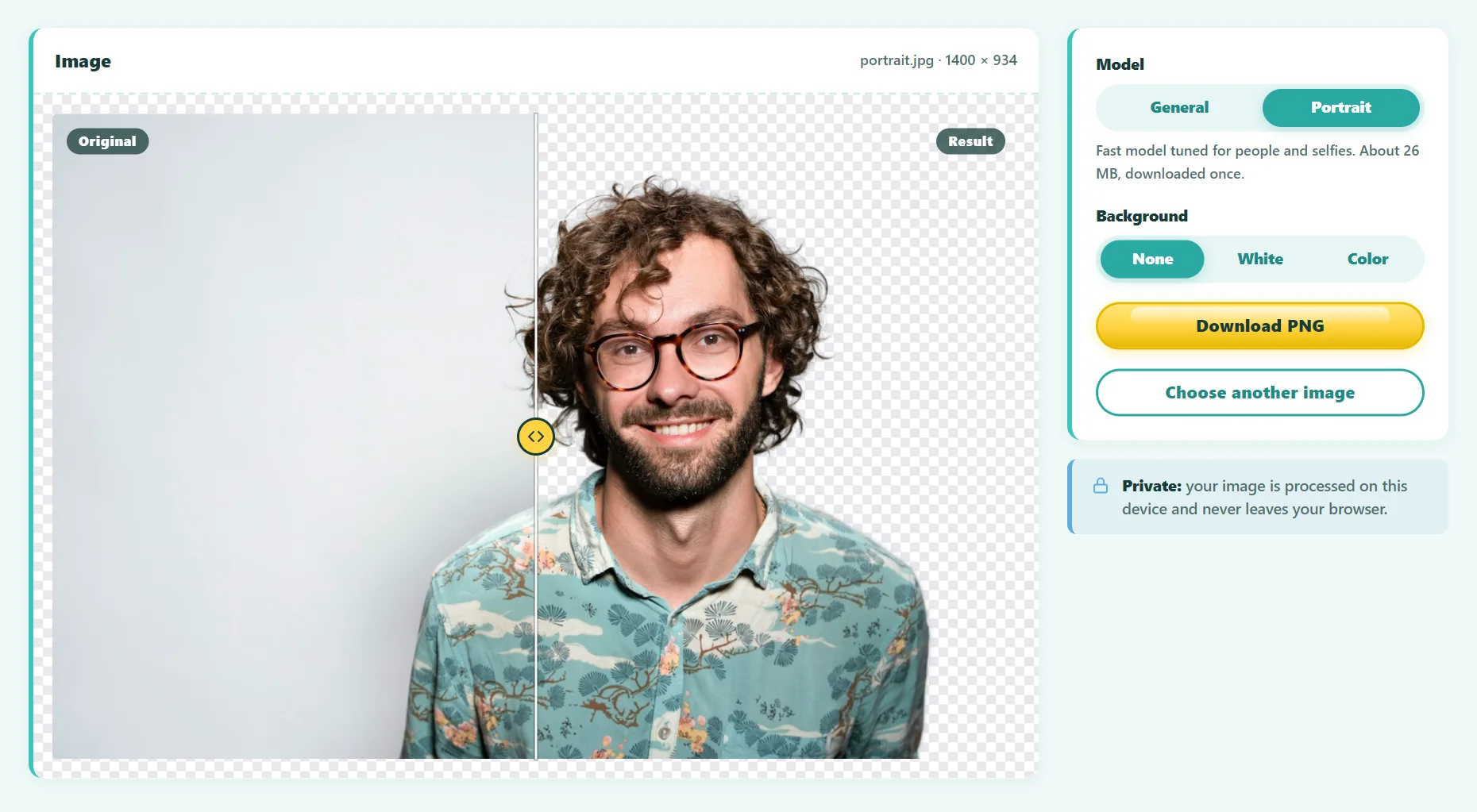
An online AI tool is the most flexible option because it works on Windows, Mac, Chromebook, Android and iPhone, and it gives you control over the output. Here's how to do it with our free Background Remover:
- Open the tool and drop your image onto the page, or paste a screenshot with Ctrl+V. PNG, JPG and WebP all work.
- Pick a model. Choose General for products, animals and objects, or Portrait for people and selfies.
- Wait a few seconds. The first time, the AI model downloads to your browser. After that, every image is processed almost instantly.
- Choose a background. Keep it transparent, or fill it with white or any brand color.
- Download the PNG. The result keeps the full resolution of your original.
Unlike most online removers, this one runs entirely in your browser, so the photo is never uploaded to a server. That matters if you're working with unreleased products, client photos or pictures of your family.
Try it free: AI Background Remover
Remove image backgrounds automatically and download a transparent PNG. Runs in your browser, no sign-up.
Method 2: On iPhone or iPad (Photos app)
Since iOS 16, Apple devices can lift the subject out of a photo with no app at all:
- Open the photo in the Photos app.
- Touch and hold the main subject until a glowing outline appears.
- Tap Copy to paste it into another app, or Share to save it as a new image.
This is great for quick stickers and messages. The downside is that you can't choose a background color or check the edges in detail, and it works best on clearly defined subjects.
Method 3: On a Mac (Finder Quick Actions)
Recent versions of macOS include a background removal shortcut:
- In Finder, right-click (or Control-click) the image.
- Choose Quick Actions → Remove Background.
- A new copy with a transparent background is saved next to the original.
It's fast and private because it runs on your Mac. Like the iPhone feature, it doesn't let you pick between models or add a solid color.
Method 4: In Windows 11 (Paint)
The Paint app in Windows 11 gained a one-click background removal button:
- Right-click the image and choose Open with → Paint.
- On the toolbar, click Remove background.
- Save the file as a PNG. Saving as JPG would fill the transparent area with white.
Paint is handy for simple images. For product photos or portraits with hair, a dedicated AI model usually produces cleaner edges.
Which method should you use?
| Method | Best for | Solid color fill | Works on |
|---|---|---|---|
| AI background remover | Products, portraits, batches of photos | Yes | Any device with a browser |
| iPhone / iPad Photos | Quick stickers and messages | No | iOS 16+ / iPadOS 16+ |
| Mac Quick Actions | Fast one-off edits on a Mac | No | Recent macOS |
| Windows Paint | Simple graphics and screenshots | No | Windows 11 |
How AI background removal actually works
Background removers use a type of AI model called an image segmentation model. It has been trained on many thousands of photos where people manually traced the outline of the subject. From those examples, it learned what a foreground usually looks like: where people, products and animals end and the background begins.
When you give it a new photo, the model produces an alpha mask: a grayscale map where white means "keep", black means "remove" and shades of gray mean "partly transparent". Those gray values are what make hair and fur look natural instead of looking cut out with scissors.
Tips for clean, professional edges
- Start with contrast. A dark subject on a light background (or the reverse) gives the model the clearest boundary. Busy, same-colored backgrounds are the hardest case for any tool.
- Use the highest resolution you have. More pixels mean more detail along the edges. Avoid screenshots of screenshots.
- Mind the lighting. Strong shadows touching the subject can be mistaken for part of it. Soft, even light gives the cleanest cut-outs.
- Choose the right model. Portrait models are trained on people. General models handle products and pets better.
- Always save as PNG or WebP. JPG doesn't support transparency.
- Zoom in before you publish. Check hair, fingers and see-through areas like glass at 100% zoom.
Background removal for product photos
Most marketplaces have rules for the main product image. Amazon, for example, requires a pure white background (RGB 255, 255, 255) for the main image, with the product filling most of the frame. A background remover with a white fill option handles this in one step.
A few extra tips for e-commerce:
- Photograph every product from the same distance and angle so your catalog looks consistent.
- After removing the background, crop so the product fills about 85% of the frame.
- Add a subtle shadow in your design tool if the product looks like it's floating.
- Keep a transparent PNG as your master file, then export white or colored versions as needed.
Frequently asked questions
Is it free to remove a background from a photo?
Yes. All four methods in this guide are free. Some popular online services limit free downloads to low resolution. Our tool keeps the full resolution with no watermark.
Why does my image have a white background instead of a transparent one?
The file was saved as a JPG, which can't store transparency. Download or save it as a PNG instead.
Can AI remove the background from hair?
Yes, modern models handle hair well because they produce soft, partly transparent edges. Results are best when the hair contrasts with the background.
Is it safe to upload personal photos?
It depends on the service. Many tools process images on their servers. Our Background Remover runs the AI model on your own device, so your photos are never uploaded.
The bottom line
For a quick one-off edit, your phone or computer's built-in tools are perfectly fine. When you need a solid color background, consistent product shots or the cleanest possible edges, use a dedicated AI tool. Either way, start with a sharp, well-lit photo and save the result as a PNG.
Found something out of date or unclear? Email contact@ultratoolsai.com and we'll fix it.