How to Upscale an Image Without Losing Quality
Stretch a small image in any editor and it turns soft and blurry. AI super-resolution takes a different approach: it rebuilds the missing detail. Here's how it works and how to get the sharpest result.
Quick answer
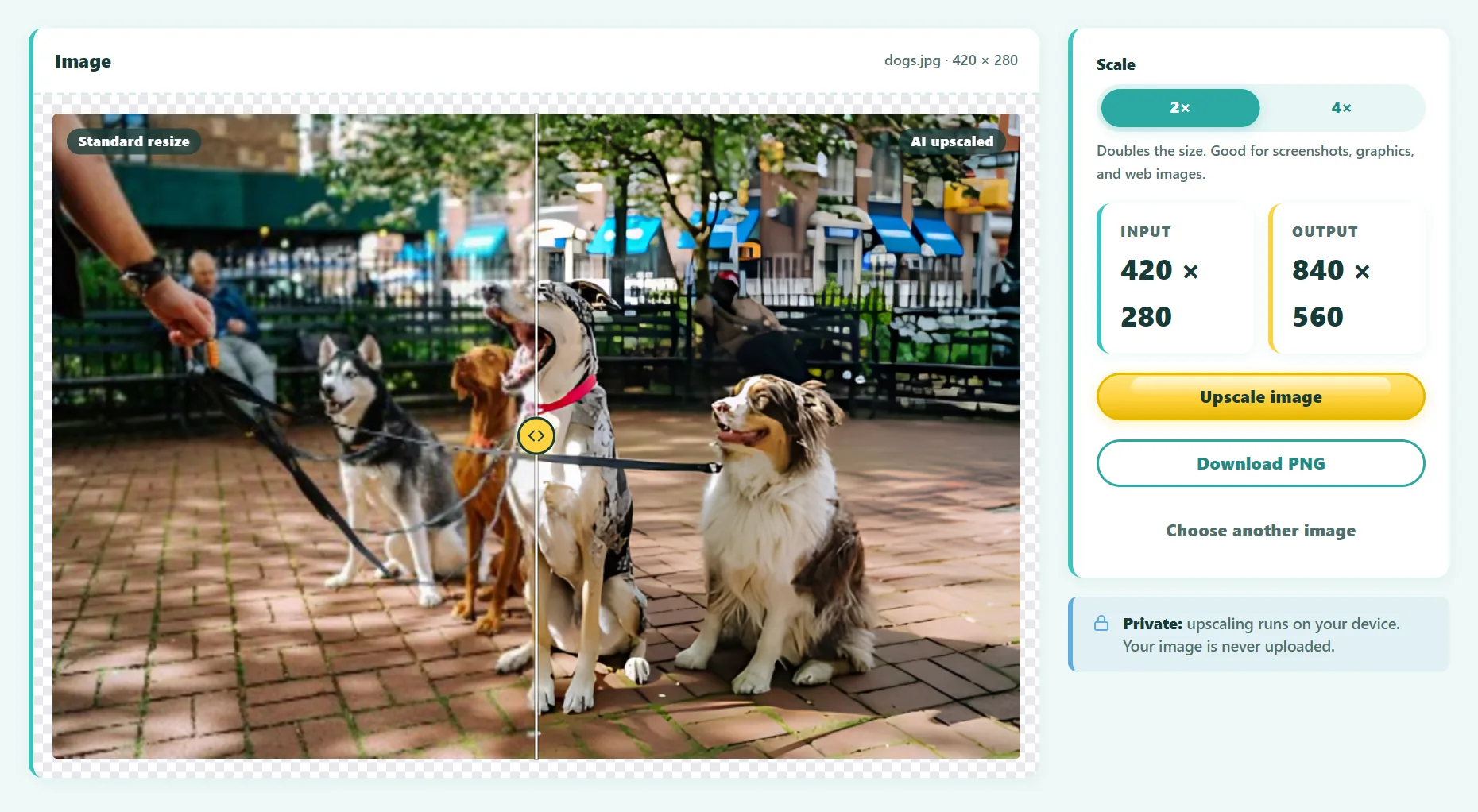
To enlarge an image without it going blurry, use an AI upscaler instead of a normal resize. Upload the image, choose 2× or 4×, and download the result as a PNG. AI models such as Real-ESRGAN predict fine detail that simple resizing can't create, so edges and textures stay crisp.
You've probably been there: the only copy of a logo is 300 pixels wide, a supplier sent tiny product photos, or an old family picture looks pixelated on a modern screen. Making the image bigger seems easy, but the result is usually disappointing. This guide explains why, and how to do it properly.
Why images get blurry when you enlarge them
A digital image is a fixed grid of pixels. When you make it twice as wide and twice as tall, you need four times as many pixels, and three out of every four don't exist yet. A traditional resize fills them in with interpolation, which means averaging the neighboring pixels:
- Nearest neighbor copies the closest pixel. Edges stay hard but look blocky and jagged.
- Bilinear averages the four nearest pixels. Smooth, but noticeably soft.
- Bicubic and Lanczos use more neighbors and give the best traditional results, but they still can't create detail that isn't there.
Averaging always blurs. The bigger the enlargement, the more obvious it gets.
How AI upscaling is different
An AI upscaler (also called super-resolution) is a neural network trained on millions of pairs of images: a sharp, high-resolution version and a degraded, low-resolution copy of the same picture. By studying these pairs, the model learns what real detail usually looks like: how an eyelash, a brick wall, a letter or a leaf should look up close.
When you upscale an image, the model doesn't just average pixels. It predicts the most plausible high-resolution version. Models like Real-ESRGAN were also trained on blurry, noisy and compressed images, so they clean up JPG artifacts while enlarging.
How to upscale an image for free, step by step
- Open the free AI Image Upscaler.
- Drop in a PNG, JPG or WebP image. Upscaling helps most with images under about 1000 pixels wide.
- Choose 2× to double the size or 4× to quadruple it.
- Press Upscale. The small AI model (about 5 MB) downloads once, then runs on your device.
- Drag the comparison slider to compare the AI result with a regular resize.
- Download the result as a PNG.
Everything happens in your browser, so the image isn't uploaded anywhere. If your browser supports WebGPU, your graphics card does the work and larger images are allowed.
Try it free: AI Image Upscaler
Upscale low-resolution images 2× or 4× with AI super-resolution. Runs in your browser, no sign-up.
2× or 4×: which scale should you choose?
| Starting size | Goal | Recommended |
|---|---|---|
| 800–1000 px | Sharper image for a website or slides | 2× |
| 300–600 px | Usable on modern screens | 4× |
| Under 300 px | Anything larger | 4×, then check details carefully |
| Already 2000 px+ | Large print | Usually not needed; check your printer's DPI first |
How big does an image need to be for print?
For print, what matters is pixels per inch (PPI) at the final size. A common target is 300 PPI for close-up prints and around 150 PPI for posters viewed from a distance. To find the pixels you need, multiply the print size in inches by the PPI:
- A 6 × 4 inch photo at 300 PPI needs 1800 × 1200 pixels.
- A US Letter page (8.5 × 11 inches) at 300 PPI needs 2550 × 3300 pixels.
- An 8 × 10 inch print at 300 PPI needs 2400 × 3000 pixels.
- A 24 × 36 inch poster at 150 PPI needs 3600 × 5400 pixels.
If your image is short of the target, a 2× or 4× AI upscale often closes the gap.
Tips for the sharpest results
- Start from the original file. Every screenshot, re-save or messaging-app compression throws away detail the AI could have used.
- Upscale before you edit. Crop, color-correct and add text after upscaling, not before, so those edits stay sharp.
- Save as PNG. Re-saving as a low-quality JPG adds new artifacts to your freshly cleaned image.
- Check faces and text up close. The AI invents plausible detail. On very small faces, the result may not look exactly like the real person, and tiny text may not become readable.
- Don't chain upscales. Running 4× twice rarely beats a single 4× and can produce a waxy, over-processed look.
What AI upscaling can't do
Super-resolution is impressive, but it isn't magic. It works by predicting likely detail, not by recovering information that was never captured. A badly out-of-focus photo will become larger and cleaner, but it won't become perfectly sharp. A license plate that's a few pixels wide won't become readable. For those cases, the only real fix is a better original.
Frequently asked questions
Is it possible to increase resolution without losing quality?
With traditional resizing, no: enlarging always softens the image. With AI super-resolution, you can enlarge 2× to 4× while keeping the image looking sharp, because the model adds realistic detail instead of averaging pixels.
Does upscaling work on illustrations and anime?
Yes. Flat colors and clean lines are actually easy for AI upscalers, so illustrations, game art and anime often give the best results.
Will the upscaled image keep its transparency?
With our tool, yes. Transparent PNGs stay transparent after upscaling.
Is AI upscaling free?
Many services charge per image or add watermarks. Our Image Upscaler is free with no sign-up, because the AI runs on your own device.
The bottom line
If you need a bigger version of an image, skip the plain resize and use AI super-resolution. Start from the best original you have, choose 2× for mild enlargements and 4× for tiny images, and save the result as a PNG.
Found something out of date or unclear? Email contact@ultratoolsai.com and we'll fix it.