How to Blur Faces in Photos Before You Share Them
Strangers in the background, kids at a school event, a license plate in a car listing: there are plenty of good reasons to hide faces before posting a photo. Here's how to do it quickly, and how to do it so it can't be undone.
Quick answer
Use a face blur tool that detects faces automatically, check that nothing was missed, and drag over anything else you want to hide. For truly private images, choose a solid block or strong pixelation rather than a light blur, and always share the exported copy, never the original.
Photos travel further than we expect. A picture posted to a neighborhood group can end up in search results, and a background face can be matched by facial recognition. Blurring is a simple courtesy, and in many situations it's also a legal or professional requirement.
When should you blur faces?
- Children, especially other people's, at school events, sports and parties.
- Bystanders in street, travel and event photos.
- Employees and customers in business photos, unless you have their consent.
- Vulnerable people: patients, protesters, people in shelters or sensitive situations.
- License plates in car listings, dashcam clips and street photography.
- Screens and documents that appear by accident in screenshots and office photos.
In the United States, there's no single federal law against posting photos taken in public. However, using someone's likeness to promote a business can require their permission under state right-of-publicity laws, schools and youth organizations usually need a parent's consent to publish photos of children, and some states regulate biometric data such as face scans. Blurring sidesteps most of these issues.
In the EU and UK, a clearly identifiable face is personal data under the GDPR. Businesses that publish photos of people generally need a lawful basis, such as consent. Blurring is one of the simplest ways to avoid publishing personal data you don't need. Rules differ between countries, so check local guidance for anything sensitive.
How to blur faces automatically, step by step
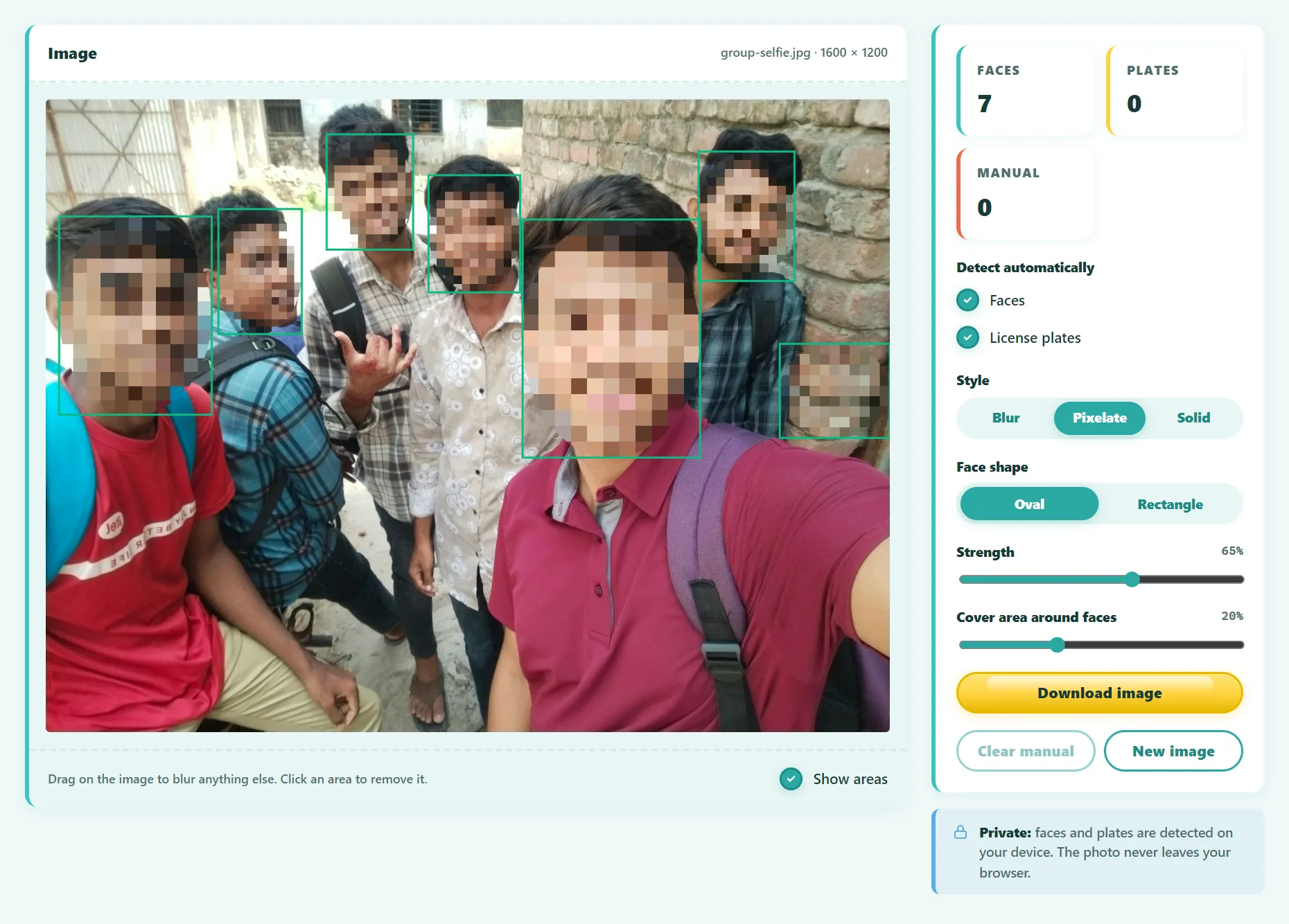
- Open the free Face Blur tool and drop in your photo, or paste it with Ctrl+V.
- Faces and license plates are detected and covered automatically.
- Review the result. Zoom in on the edges of the picture and on small or turned faces.
- Drag a box over anything that was missed: a face, a name badge, a screen, a house number.
- Click an area to remove it if you want to keep someone visible, such as yourself.
- Choose a style (blur, pixelate or solid), a shape, and the strength.
- Download the new image and share that file.
The photo is processed entirely in your browser. That's important here: uploading unblurred images of other people to a server would defeat the purpose.
Try it free: Face Blur
Detect and blur faces and license plates automatically to protect privacy. Runs in your browser, no sign-up.
Blur, pixelate or solid block: which is safest?
| Style | Looks | Privacy | Use it for |
|---|---|---|---|
| Light blur | Soft and natural | Lowest | Casual photos where the person is a small background detail |
| Strong blur | Smooth, clearly hidden | Good | Social media, blogs, newsletters |
| Pixelate (large blocks) | Classic "censored" look | Good to strong | Plates, documents, news-style images |
| Solid block | Obvious | Strongest | Sensitive images, legal and safety reasons |
Why does this matter? A weak blur or fine pixelation can sometimes be partly reversed or matched by software, especially for text such as license plates. A solid fill removes the original pixels completely, so there's nothing left to recover.
Never just draw on top in a shared editor. Some apps (and some PDF tools) save your edits as a separate layer, and the original can be recovered. Always export a new flat image (PNG or JPG) and share that file.
Common mistakes to avoid
- Blurring only the face. Distinctive hair, tattoos, clothing and name badges can identify someone too. Make the area a little larger than the face.
- Forgetting reflections. Mirrors, windows, sunglasses and shiny cars can show faces you didn't notice.
- Leaving metadata in place. Photos can contain GPS location in their EXIF data. Re-exporting the image through a tool that redraws it, like this one, produces a fresh file without the original camera metadata.
- Sharing the original by mistake. Name the blurred copy clearly, for example
party-blurred.png.
How automatic face detection works
Face blur tools use a face detection model, a small neural network trained to find faces at different sizes, angles and lighting conditions. Our tool uses YuNet, a fast detector from the OpenCV project, plus a separate model trained to find license plates. Detection only finds where faces are. It doesn't recognize who anyone is.
No detector is perfect. Faces that are tiny, strongly turned, partly hidden or in deep shadow are the most likely to be missed, which is why the review step matters.
Frequently asked questions
Can a blurred face be unblurred?
A light blur can sometimes be partly reversed or matched, especially on text. A strong pixelation or a solid block can't be reversed, because the original detail is gone from the exported file.
Is it legal to post photos of strangers?
It depends on your country and the context. Many places allow photography in public, but publishing images for commercial use, or of children, often needs consent. Blurring removes most of the risk.
Can I blur faces in a video?
This tool works on still images. For video, you need an editor with face tracking, which follows each face from frame to frame.
Does it work on group photos?
Yes. Every detected face gets its own area, and you can click to keep specific people unblurred.
The bottom line
Blurring faces takes a few seconds and protects people who never agreed to be in your photo. Use automatic detection to do most of the work, check the result carefully, pick a solid or strongly pixelated style for anything sensitive, and share only the exported copy.
Found something out of date or unclear? Email contact@ultratoolsai.com and we'll fix it.