Voice Typing: How to Type With Your Voice on Any Device
Most people speak about three times faster than they type. Voice typing turns that speed into text: emails, notes, articles and messages, ready to edit. Here's how to start for free and get accurate results.
Quick answer
Open a free speech-to-text tool in Chrome, Edge or Safari, choose your language, press the microphone button and start speaking. Built-in options: Win+H on Windows, the dictation key on Mac, Ctrl+Shift+S in Google Docs, and the microphone on your phone's keyboard.
Why use voice typing?
- Speed. Conversational speech runs at about 130–150 words per minute, while typical typing speeds are around 40.
- First drafts. Talking through an idea is often easier than staring at a blank page.
- Accessibility. Voice typing helps people with RSI, injuries, arthritis or dyslexia.
- Mobility. Capture ideas while walking or away from a keyboard.
Method 1: In your browser (any computer)
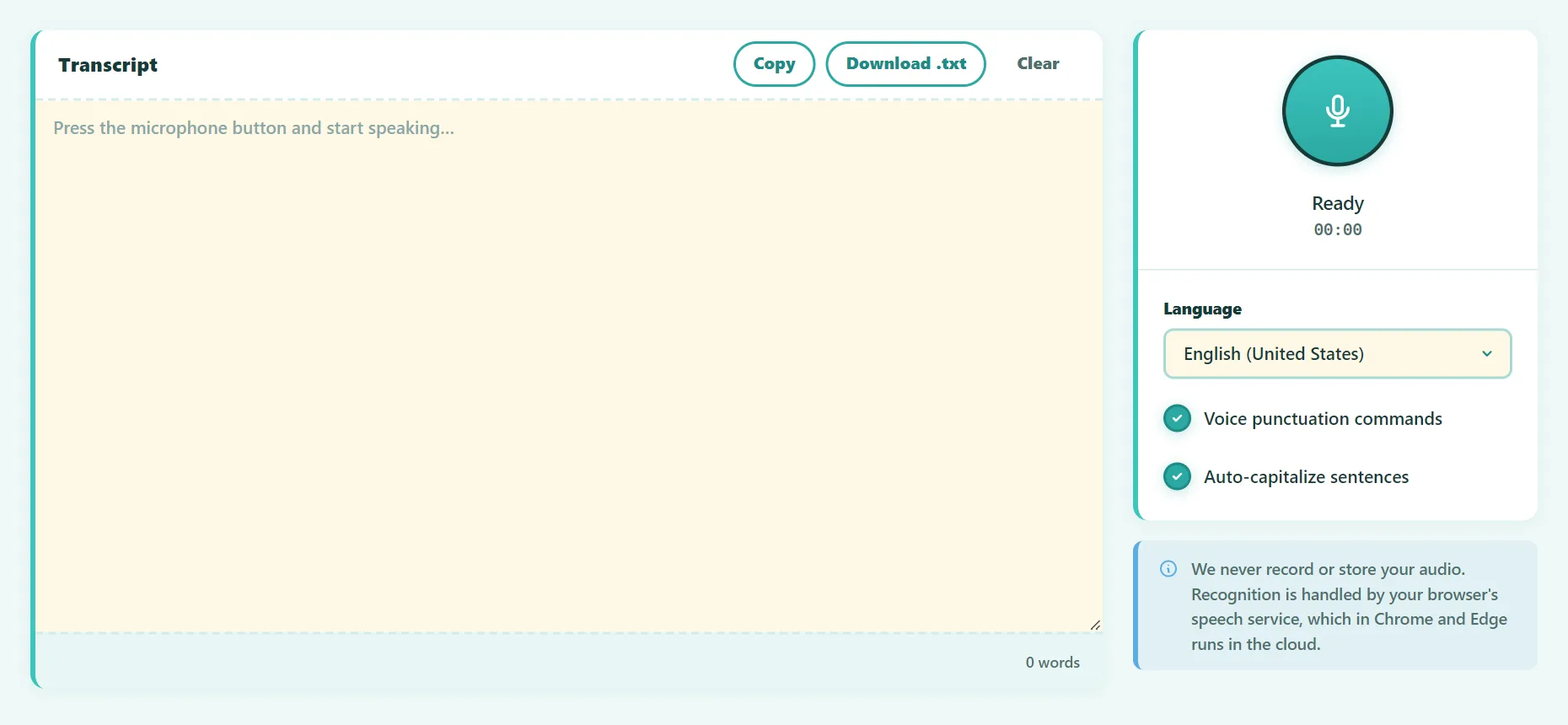
- Open the free Speech to Text tool in Chrome, Edge or Safari.
- Choose your language and accent, for example English (US) or English (UK).
- Press the microphone button and allow microphone access.
- Speak naturally. Words appear in real time.
- Say punctuation out loud: "comma", "period", "question mark", "new line", "new paragraph".
- Edit the text, then copy it or download a .txt file.
If you pause to think, the tool restarts listening automatically until you press Stop.
Try it free: Speech to Text
Dictate with your microphone and see the words appear live. Runs in your browser, no sign-up.
Method 2: Windows voice typing
Click in any text field (Word, email, a browser) and press Win+H. A small voice typing bar appears. Speak, and press the shortcut again to stop. You can turn on automatic punctuation in the bar's settings.
Method 3: Mac dictation
Turn it on in System Settings → Keyboard → Dictation. Then press the microphone key (or press Fn twice, depending on your settings) in any text field. On Apple silicon Macs, dictation can run on the device for many languages.
Method 4: Google Docs voice typing
In Google Docs (using Chrome), choose Tools → Voice typing or press Ctrl+Shift+S (Cmd+Shift+S on Mac). Click the microphone and start speaking.
Method 5: iPhone and Android
Tap the microphone icon on the keyboard in any app. On iPhone, you can keep typing on the keyboard while dictating. On Android, Gboard's voice typing works offline for many languages once the language pack is downloaded.
Voice commands for punctuation
| Say | To get |
|---|---|
| "comma" | , |
| "period" or "full stop" | . |
| "question mark" | ? |
| "exclamation mark" | ! |
| "colon" | : |
| "new line" | A line break |
| "new paragraph" | A blank line between paragraphs |
Commands vary a little between apps and languages. These work in our tool for English, and most of them work in Windows, Mac and Google Docs too. Our tool also understands spoken punctuation in French, Spanish, German and Arabic.
Tips for accurate dictation
- Use a decent microphone. A headset or earbuds with a mic close to your mouth beats a laptop's built-in microphone.
- Reduce background noise. Close windows, turn off fans and music.
- Pick the right accent. Choosing English (India) or English (Australia) instead of US English can noticeably improve accuracy.
- Speak in full phrases. Recognition uses context, so natural sentences work better than word-by-word dictation.
- Don't over-enunciate. Speak at a normal, steady pace.
- Dictate first, edit later. Stopping to fix each mistake breaks your flow. Tidy up at the end.
- Spell tricky names afterwards. Brand names and unusual surnames are often misheard. Fix them in the edit.
Privacy: where does your voice go?
Voice typing in browsers uses the browser's speech service. In Chrome and Edge, audio is sent to Google's or Microsoft's servers to be transcribed. Safari and recent Apple devices can process many languages on the device. Our page never records or stores your audio, but if you're dictating something confidential, keep this in mind and check your device's settings.
Frequently asked questions
Is voice typing free?
Yes. All the methods in this guide are free.
Why doesn't voice typing work in Firefox?
Firefox doesn't currently support the speech recognition feature that browser-based dictation tools need. Use Chrome, Edge or Safari.
Why did dictation stop by itself?
Browsers end recognition after a period of silence. Our tool restarts automatically until you press Stop.
Can I dictate in other languages?
Yes. Our tool supports more than 40 languages and accents. Choose the language before you start.
The bottom line
Voice typing is one of the easiest productivity upgrades there is. Use a good microphone, choose the right language and accent, say your punctuation, and edit at the end.
Found something out of date or unclear? Email contact@ultratoolsai.com and we'll fix it.