How to Extract Data From Invoices and Receipts Automatically
Typing invoice numbers, dates and totals into a spreadsheet is slow, boring and error-prone. Here's how automatic invoice extraction works, and a simple free workflow to get your invoices into Excel or your accounting software.
Quick answer
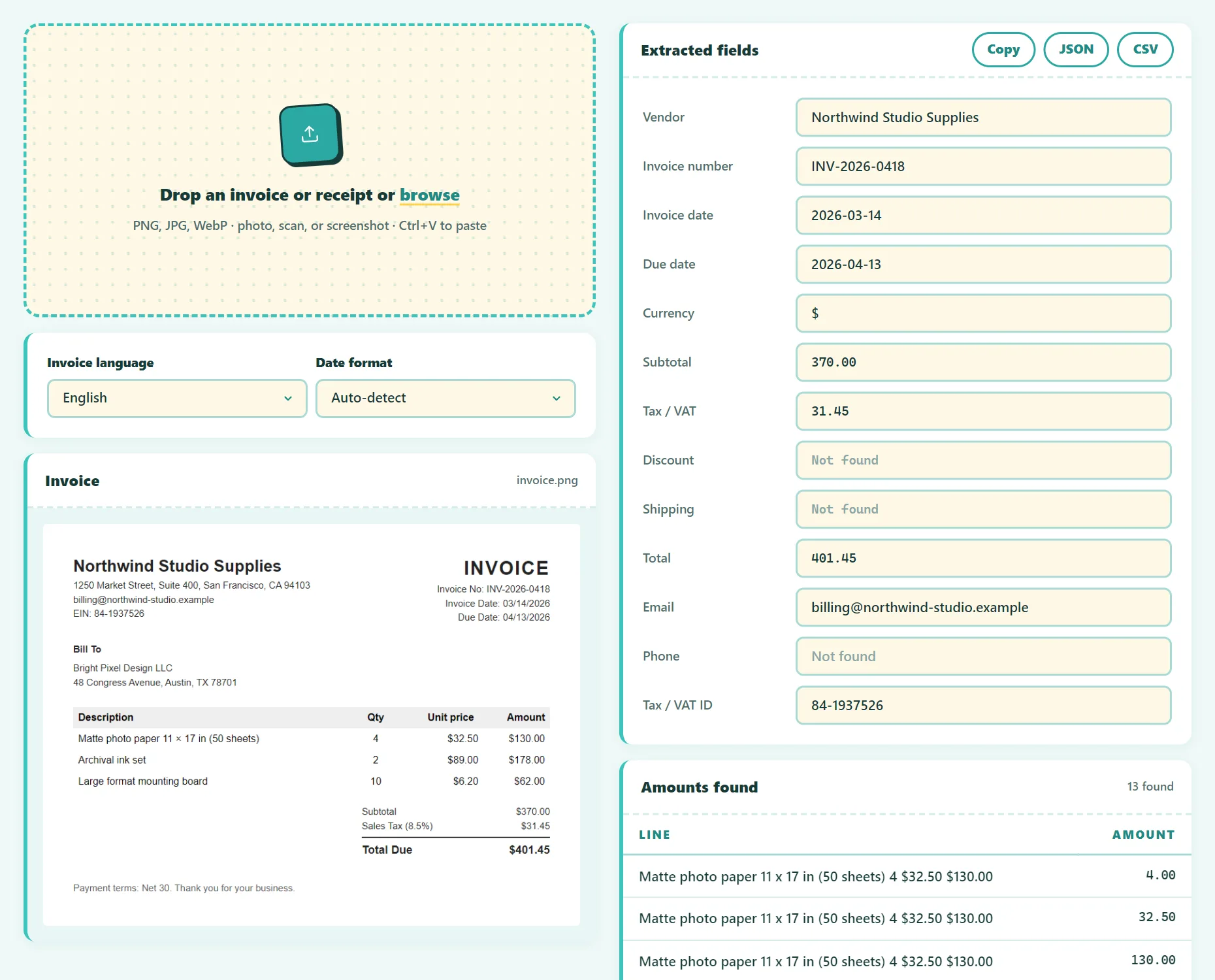
Drop an image of the invoice into an invoice data extractor. OCR reads the text, then the tool finds the invoice number, dates, subtotal, tax, total and contact details. Review every field, then export as CSV for Excel or Google Sheets, or as JSON for software.
Which invoice fields should you capture?
| Field | Why it matters |
|---|---|
| Supplier name | Who you're paying; groups spending by vendor |
| Invoice number | Unique reference; prevents paying the same invoice twice |
| Invoice date | Determines the accounting and tax period |
| Due date | Avoids late fees |
| Subtotal | Amount before tax |
| Sales tax (or VAT) | Needed for bookkeeping, sales tax filings and expense reports |
| Total / amount due | What you actually pay |
| Currency | Essential if you buy from other countries |
| Vendor tax ID (EIN or VAT number) | Useful for 1099 reporting to US contractors, and required to reclaim VAT abroad |
How automatic invoice extraction works
Invoice extraction happens in two stages:
- OCR (optical character recognition) converts the image into lines of text.
- Field extraction finds the values you care about. Simple tools look for labels such as "Invoice No.", "Date", "Subtotal", "VAT", "Total" and "Amount Due" and read the value next to them. Advanced commercial systems use AI models trained on many invoice layouts.
Number formats are a classic trap. 1,234.56 (US and UK) and 1.234,56 (much of Europe) mean the same amount. A good extractor understands both, along with currency symbols and codes.
Step by step: from invoice image to spreadsheet
- Get a clean image. Use the digital invoice (screenshot or exported image) if you have one. For paper, photograph it flat in good light.
- Open the free Invoice Data Extractor and drop in the image.
- Review the detected fields. Every field is editable. Pay special attention to the total and tax.
- Export as CSV for Excel or Google Sheets, or JSON for your own software.
- In your spreadsheet, keep one row per invoice with the same column order every time.
Everything runs in your browser. Invoices contain bank details, addresses and prices, so it's reassuring that nothing is uploaded.
Try it free: Invoice Data Extractor
Pull dates, totals, and invoice numbers from invoice images. Runs in your browser, no sign-up.
Setting up a simple invoice log in Excel
A consistent spreadsheet turns extracted data into something useful. Suggested columns:
Supplier | Invoice no. | Invoice date | Due date | Currency | Subtotal | Tax | Total | Paid on | Category | File name- Prevent duplicates: use conditional formatting to highlight repeated invoice numbers from the same supplier.
- Track due dates: sort by due date, or highlight invoices due in the next 7 days.
- Check the math: add a column with
=Subtotal + Tax − Total. Anything other than zero needs a second look. - Link to the file: store the original image or PDF with a matching file name, for audits.
Tips for accurate extraction
- Digital beats paper. An exported image of a digital invoice is far more accurate than a photo.
- Photograph flat and straight, with the whole document in the frame and no shadows.
- Crumpled receipts: flatten them under a book for a minute before photographing.
- Thermal receipts fade. Capture them soon after purchase.
- Always verify totals. If no total is labeled, tools often suggest the largest amount, which isn't always right.
When to use dedicated accounting automation
A free extractor is perfect for freelancers and small businesses handling a few dozen invoices a month. If you process hundreds, look at the invoice capture features in accounting software (many include email forwarding and supplier rules), or dedicated accounts payable tools. Even then, a human review step for unusual invoices is best practice.
Frequently asked questions
Can I extract data from a PDF invoice?
Export the PDF page as an image (or take a screenshot) and drop it into the extractor. If the PDF contains real text, you can also copy the values directly.
Does it work with receipts?
Yes. Receipts are processed the same way, though faded or crumpled receipts may need small corrections.
Is it accurate enough for accounting?
It removes most of the typing, but you should always review the totals and tax before recording them. Keep the original invoice as your source of truth.
Is my invoice uploaded?
No. OCR and extraction run entirely in your browser.
The bottom line
Automatic extraction turns a pile of invoices into a clean spreadsheet in minutes. Start with clean images, review every total, export to a consistent CSV layout, and keep the originals for your records.
Found something out of date or unclear? Email contact@ultratoolsai.com and we'll fix it.