WebP vs PNG vs JPG: Which Image Format Should You Use?
Pick the wrong image format and you get either a blurry graphic or a page that loads slowly. Here's how the main formats differ and a simple rule for choosing the right one every time.
Quick answer
- WebP: the best default for websites. Small files, good quality, supports transparency.
- JPG: photos that need to open everywhere, including email and print shops.
- PNG: screenshots, text-heavy graphics and anything needing lossless quality.
- SVG: logos and icons that must stay sharp at any size.

Image format sounds like a technical detail, but it has a real impact. Images are usually the heaviest part of a web page, so the right format can make a site noticeably faster. The wrong one can blur your text or bloat your files.
Lossy vs lossless: the key difference
Lossy formats (JPG, and WebP or AVIF in lossy mode) throw away detail the eye is unlikely to notice. Files get much smaller, but every re-save loses a little more quality.
Lossless formats (PNG, and WebP in lossless mode) keep every pixel exactly. Quality is perfect, but files are larger, especially for photos.
The formats compared
| Format | Compression | Transparency | Best for | Watch out for |
|---|---|---|---|---|
| JPG / JPEG | Lossy | No | Photos, email, printing | Blurry edges on text and graphics |
| PNG | Lossless | Yes | Screenshots, UI, logos with transparency | Very large photo files |
| WebP | Both | Yes | Almost everything on the web | Some older desktop software can't open it |
| AVIF | Both | Yes | Smallest high-quality photos on the web | Slower to encode; patchier app support |
| SVG | Vector | Yes | Logos, icons, simple illustrations | Not suitable for photos |
| GIF | Lossless, 256 colors | Basic | Simple animations | Huge files; use video or WebP instead |
JPG: the universal photo format
JPG has been around since 1992 and opens everywhere: every phone, browser, email client, printer and photo app. It compresses photos very efficiently, which is why cameras use it. Its weakness is sharp edges. Text, line art and screenshots get fuzzy halos ("artifacts") around the edges.
Use JPG when you're sending photos by email, uploading to services that don't accept WebP, or printing.
PNG: perfect quality and transparency
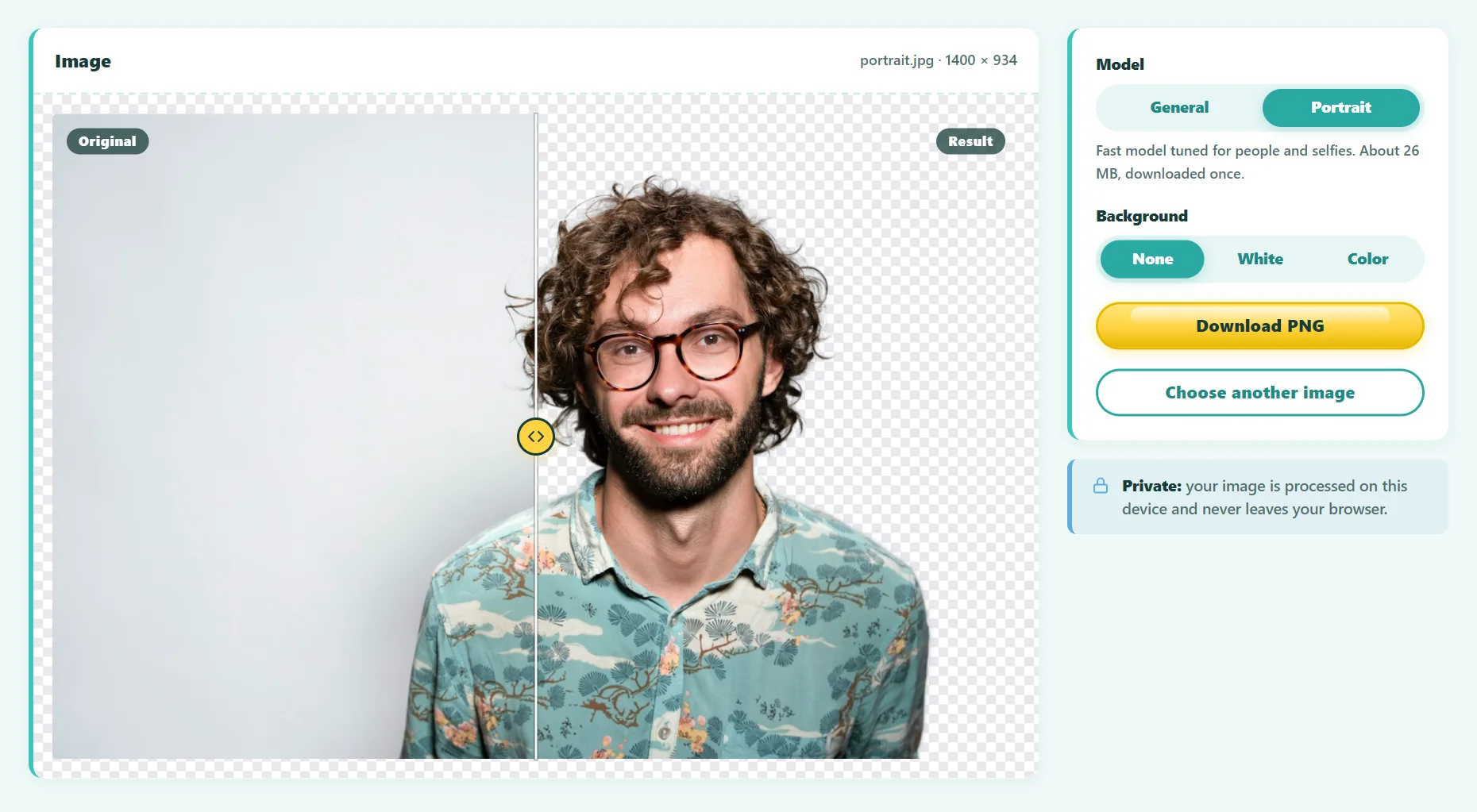
PNG is lossless, so screenshots and graphics with text stay perfectly crisp. It also supports full transparency, which is why cut-out images and logos are usually PNG. For photos, though, PNG files can be 5–10 times larger than a JPG that looks the same.
Use PNG when you need transparency, exact pixels (screenshots, UI designs) or a master copy you'll edit again.
WebP: the modern web default
WebP, developed by Google, does what JPG and PNG do in one format: lossy or lossless compression, plus transparency and animation. According to Google's own studies, lossy WebP files are typically 25–34% smaller than comparable JPGs, and lossless WebP files are around 26% smaller than PNGs. Every modern browser supports it.
Use WebP for nearly every image on a website. Keep a JPG or PNG copy if you also need to share the file with people using older software.
What about AVIF?
AVIF is newer and compresses even better than WebP in many cases, especially for photos. All major browsers support it now. The trade-offs are slower encoding and less support in desktop apps. It's a great choice if your website platform generates it automatically.
SVG: infinitely sharp graphics
SVG isn't made of pixels. It stores shapes as mathematical paths, so a logo stays perfectly sharp at the size of a favicon or a billboard, and the file is often tiny. SVG is the right choice for logos, icons and flat illustrations, but not for photos.
How to convert images for free
- Open the free Image Converter.
- Drop in one or more images: PNG, JPG, WebP, GIF, BMP, AVIF or SVG.
- Choose the output format: WebP, PNG, JPG or SVG.
- Set the quality (75–85 is a good default) and, optionally, a maximum width.
- Convert, then download each file or everything as a ZIP.
Conversion runs in your browser, so your images are never uploaded.
Try it free: Image Converter
Convert images between WebP, PNG, JPG, and SVG in batches. Runs in your browser, no sign-up.
Tips for smaller, faster images
- Resize first. A 4000-pixel photo displayed at 800 pixels wastes most of its weight. Resizing saves more than any format change.
- Use quality 75–85 for WebP and JPG. Above 90, files grow quickly with little visible gain.
- Keep a lossless master. Edit the PNG or original, and export the lossy version last.
- Fill transparency deliberately. JPG can't be transparent, so choose the background color when converting.
- Trace logos to SVG. Vector tracing works best on images with few flat colors.
Frequently asked questions
Is WebP better than PNG?
For websites, usually yes: WebP supports transparency like PNG but makes smaller files. PNG is still better when you need maximum compatibility or a lossless master for editing.
Does converting JPG to PNG improve quality?
No. Converting can't bring back detail that JPG compression already removed. It only makes the file bigger.
Why can't I open a WebP file?
Some older desktop apps don't support WebP. Convert it to JPG or PNG and it will open anywhere.
Which format is best for SEO?
Search engines don't favor a particular format, but they do reward fast pages. Small, well-compressed WebP or AVIF images help your page load quickly, which improves user experience.
The bottom line
Use WebP for the web, JPG for sharing photos, PNG for screenshots and transparency, and SVG for logos. Resize images to the size you actually display them, and keep quality around 80.
Found something out of date or unclear? Email contact@ultratoolsai.com and we'll fix it.