LinkedIn Profile Picture Size and Background: How to Make a Professional Headshot
Your LinkedIn photo is the first thing recruiters and clients see. A wrong size gets cropped badly, and a messy background makes a good photo look amateur. Here are the current size rules, how to frame the shot, which background colors work, and how to fix a photo for free without uploading it anywhere.
Quick answer
Upload a square (1:1) photo of at least 400 × 400 px. About 640 × 640 px is a safe target that stays sharp on large screens. Use JPG or PNG under 8 MB. LinkedIn shows the photo inside a circle, so keep your face centered and away from the corners. For a cleaner look, remove the background with the Portrait model, add a solid neutral color, crop to a square and export as JPG. It all runs in your browser, so your photo is never uploaded.
LinkedIn profile picture size at a glance
These figures come from LinkedIn's guidance as repeated by several guides. LinkedIn can change them, so confirm in its Help Center if something looks different when you upload.
| Item | Recommended |
|---|---|
| Shape | Square, 1:1. LinkedIn displays it in a circle. |
| Minimum size | 400 × 400 px. |
| Good target | About 640 × 640 px, so the photo stays sharp on large screens and in high-density displays. |
| Maximum size | Sources report uploads up to 7680 × 4320 px are accepted. There is no benefit in going that high. |
| File size | Up to 8 MB. |
| Format | JPG or PNG are safe choices. GIF support is reported inconsistently, so avoid it. |
| Banner (cover) image | 1584 × 396 px (4:1), PNG or JPG, up to 8 MB. |
The circular crop: what gets cut off
You upload a square, but LinkedIn displays your photo in a circle. The corners disappear, and so does anything near the edge. In practice:
- Keep your head and the top of your shoulders inside the central 80% of the image.
- Leave a little space above your head. A tight crop that touches the hair looks cramped in a circle.
- Do not put text, logos or other details in the corners.
- Test by previewing a circle over your photo, or upload and check the preview before you save.
How to frame a professional headshot
- Fill the frame. Your face should take up roughly 50–60% of the image height. A tiny figure far from the camera is hard to recognize at thumbnail size.
- Eyes in the upper third. Position your eyes about a third of the way down from the top.
- Natural light. Face a window rather than standing with it behind you. Soft daylight is more flattering than a flash.
- Camera at eye level. A high or low angle distorts features.
- A real expression. A relaxed smile reads as approachable. Wear what you would wear to meet a client in your field.
- Only you in the shot. Crop out other people, and if they appear in the original, blur their faces or choose a different photo.
- Recent and accurate. Use a photo that looks like you today, so people recognize you at a meeting or on a video call.
The best background for a LinkedIn headshot
LinkedIn does not require a specific color. What matters is that nothing distracts from your face. Good choices:
- Soft neutral gray or light gray-blue. Safe in every industry and flattering on most skin tones.
- Light blue. Friendly and professional, a favorite for corporate profiles.
- White. Clean, but it can look stark against LinkedIn's white page. Avoid it if your clothes are also light.
- A muted color that fits your brand. Good for freelancers and creatives, as long as it is not saturated.
- A blurred office or outdoor scene. Works if the real photo has natural depth. Busy detail behind your head does not.
Whichever you pick, choose a color that contrasts with your hair and clothing so your outline stays clear at small sizes. Keep the background in the photo and the banner consistent for a polished profile.
How to fix your photo for free, step by step
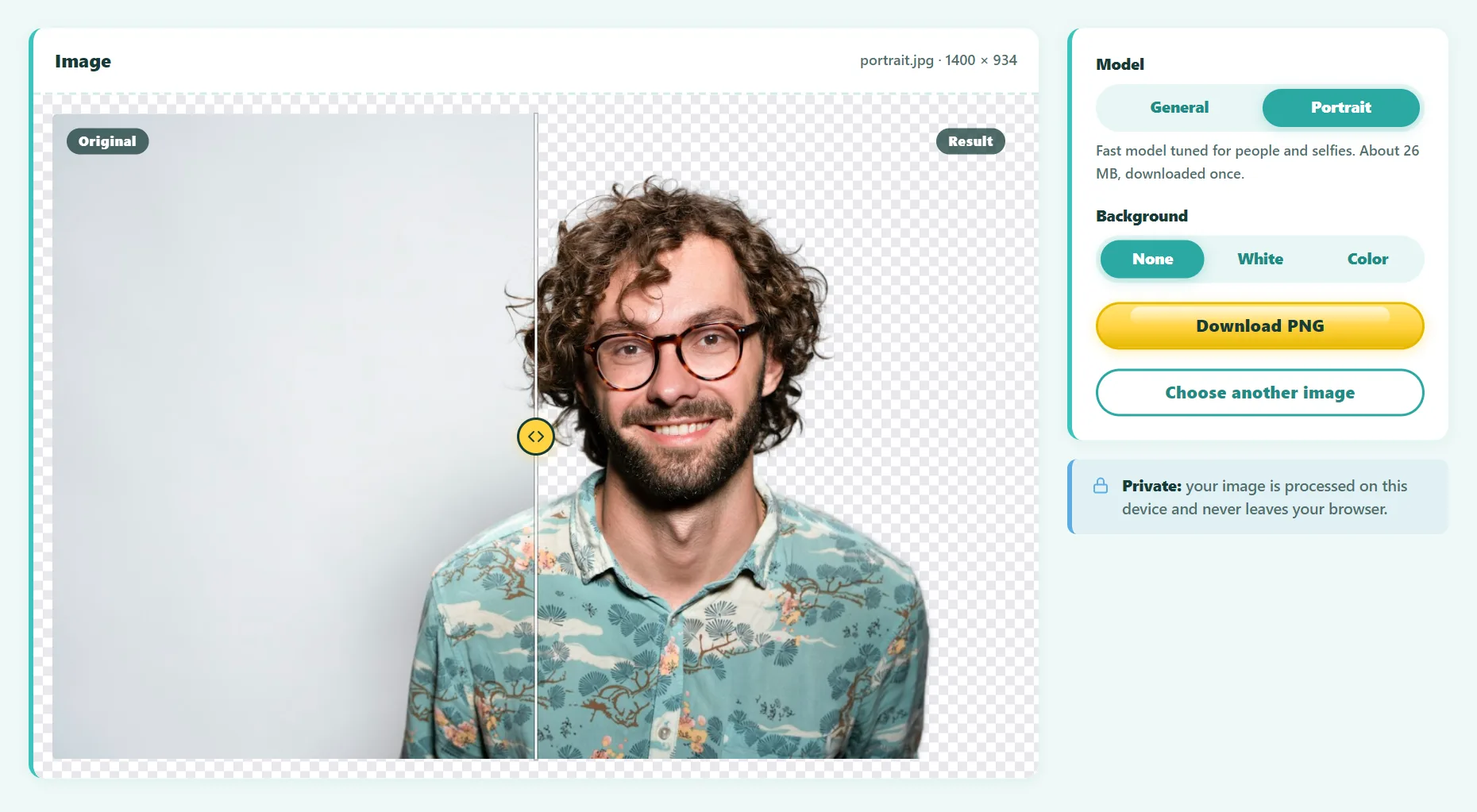
- Open the free Background Remover and drop in your photo.
- Choose the Portrait model. It is trained on people and handles hair and shoulders better.
- Pick a solid color background such as a light gray-blue, and download the result as PNG.
- Open the Smart Crop tool and choose 1:1. The cropper keeps your face in the frame automatically, and you can drag the frame to leave a little space above your head.
- Set the output width to 640–800 px.
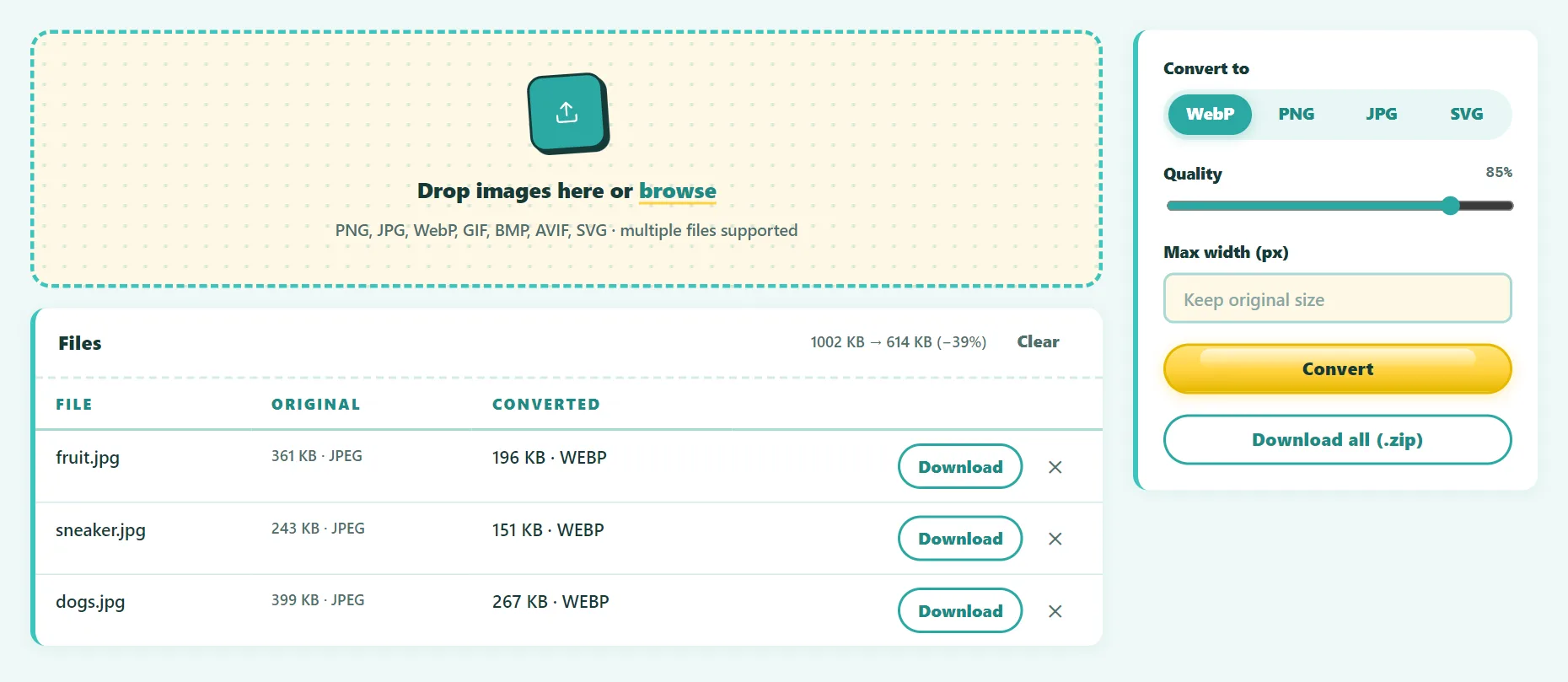
- Use the Image Converter to save a JPG at quality 85–90. This keeps the file small and the image clean.
- Upload to LinkedIn and check how the circular preview looks before you save.
Every step happens in your browser. Your personal photo is not sent to a server, which matters for something this personal.
Try it free: AI Background Remover
Remove image backgrounds automatically and download a transparent PNG. Runs in your browser, no sign-up.
Check the edges
A cut-out is only as good as its edges. Zoom to 100% and look at:
- Hair. Flyaway strands should look natural, not chopped. If the edge looks rough, try a photo where your hair stands out more from the background.
- Glasses. Check the lenses and frames. Reflections can confuse the model.
- Shoulders and collar. Make sure no patches of the old background remain.
- Matching tones. If your jacket is the same color as the new background, choose another background color.
If the result is not clean, retake the photo against a plain wall with some contrast between you and it. Starting from a clean photo gives better results than any editing.
Common mistakes
- Uploading a tiny image. Under 400 px, the photo looks blurry. If your only photo is small, you can enlarge it with the Image Upscaler, then check your face carefully, because AI upscaling invents plausible detail.
- Letting LinkedIn crop it for you. A wide photo gets cropped awkwardly. Crop to a square yourself so you choose the framing.
- Heavy filters. Strong beauty filters and extreme contrast make you hard to recognize.
- A cropped group photo. Parts of other people at the edge of the frame look unprofessional.
- A logo or text on the photo. Save branding for the banner.
- Never updating. Replace the photo when you change your look, role or industry.
Don't forget the banner
The banner behind your photo is 1584 × 396 px, a wide 4:1 strip. Your profile photo overlaps its lower left corner, so keep important text and logos away from that area. Use a simple background, a brand color or a subtle photo. You can use the Smart Crop tool with a wide ratio such as 16:9 and then trim the rest in your editor, and the Color Palette Generator can pull matching colors from your headshot so the banner and photo look like a set.
Privacy tips for profile photos
- Choose a photo that does not show your home address, a car license plate or documents behind you. If it does, use the Face Blur tool to hide license plates and other details.
- Check your LinkedIn visibility settings to control who sees your photo.
- Avoid free tools that upload your photo to a server. The tools here run locally in your browser.
Final checklist
- The image is square and at least 400 × 400 px, ideally 640 px or more.
- The file is JPG or PNG and under 8 MB.
- Your face fills about half the image and sits inside the circle.
- The background is plain, with good contrast against your hair and clothes.
- The edges look clean at 100%.
- The photo looks like you today.
Frequently asked questions
What size should a LinkedIn profile picture be?
Square, at least 400 × 400 px. About 640 × 640 px is a good target, and the file should be under 8 MB.
Why does LinkedIn crop my photo into a circle?
Profile photos are displayed in circles across the platform. Upload a square and keep your face centered so nothing important is cut off.
What background color is best for a LinkedIn photo?
A plain, neutral color such as light gray or light blue works in almost every industry. The main goal is that nothing distracts from your face.
Can I use a PNG or must it be JPG?
Both are fine. JPG usually gives smaller files. Transparent areas in a PNG may display unpredictably, so add a solid background color before you upload.
Is it safe to edit my photo with an online tool?
It is safest when the tool runs in your browser and does not upload the photo. The tools linked here work that way.
The bottom line
A good LinkedIn photo is square, sharp and simple: at least 400 × 400 px, a plain background, and your face centered inside the circle. Remove the background with the Portrait model, add a calm solid color, crop to 1:1, export a JPG and preview the circle before you save. Ten minutes of work gives you a photo that looks professional in every search result.
Found something out of date or unclear? Email contact@ultratoolsai.com and we'll fix it.